Adding a workshop collection to your GMod server is a crucial step. By adding a workshop collection to your GMod server, players don't need to manually go to your Steam Workshop page to download the addons. This saves your players lots of time, and makes it so that everyone on the server has all the addons needed to play. Follow the steps below to add a collection.
Step 1: Launch the Steam Client on Your Desktop
Step 2: Create a Workshop Collection
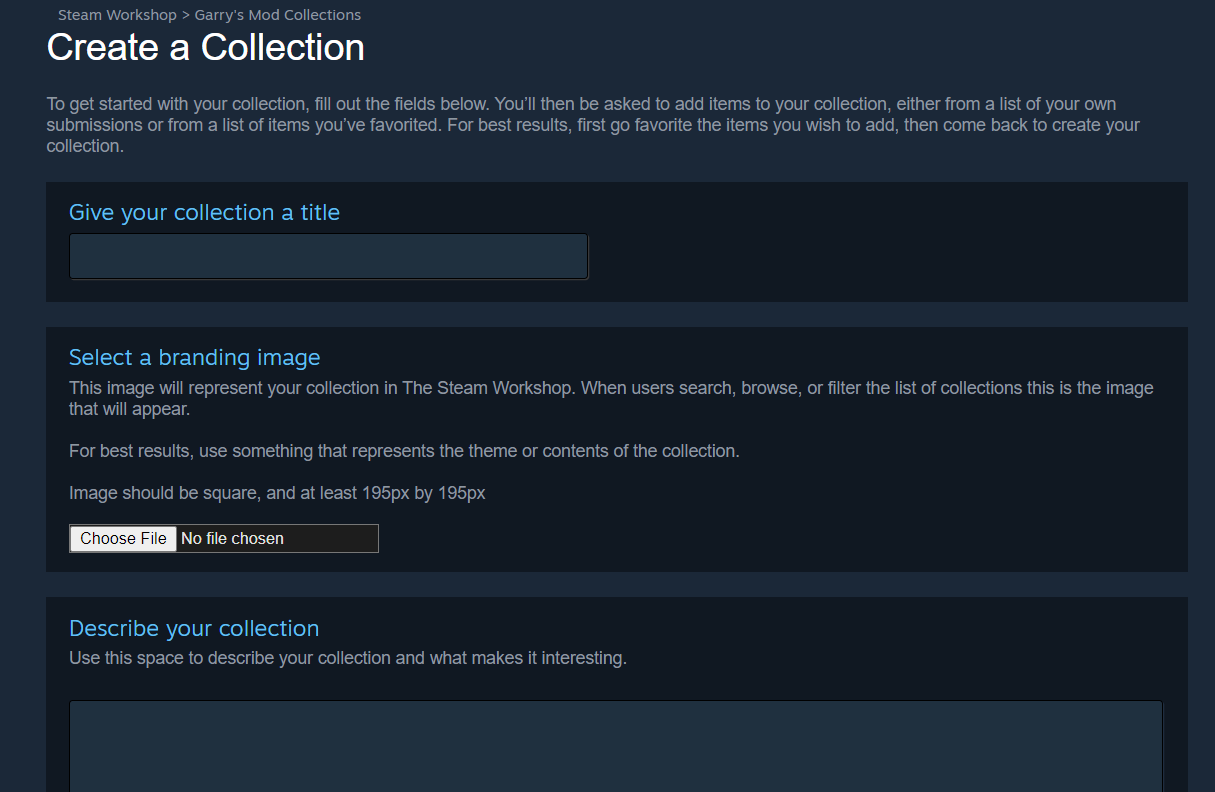
Navigate to the Create a Collection page. This is under the Steam Workshop category.
Step 3: Open the Steam Workshop Page for Garry's Mod
Click here to be taken to the GMod Steam Workshop.
Step 4: Find GMod Addons
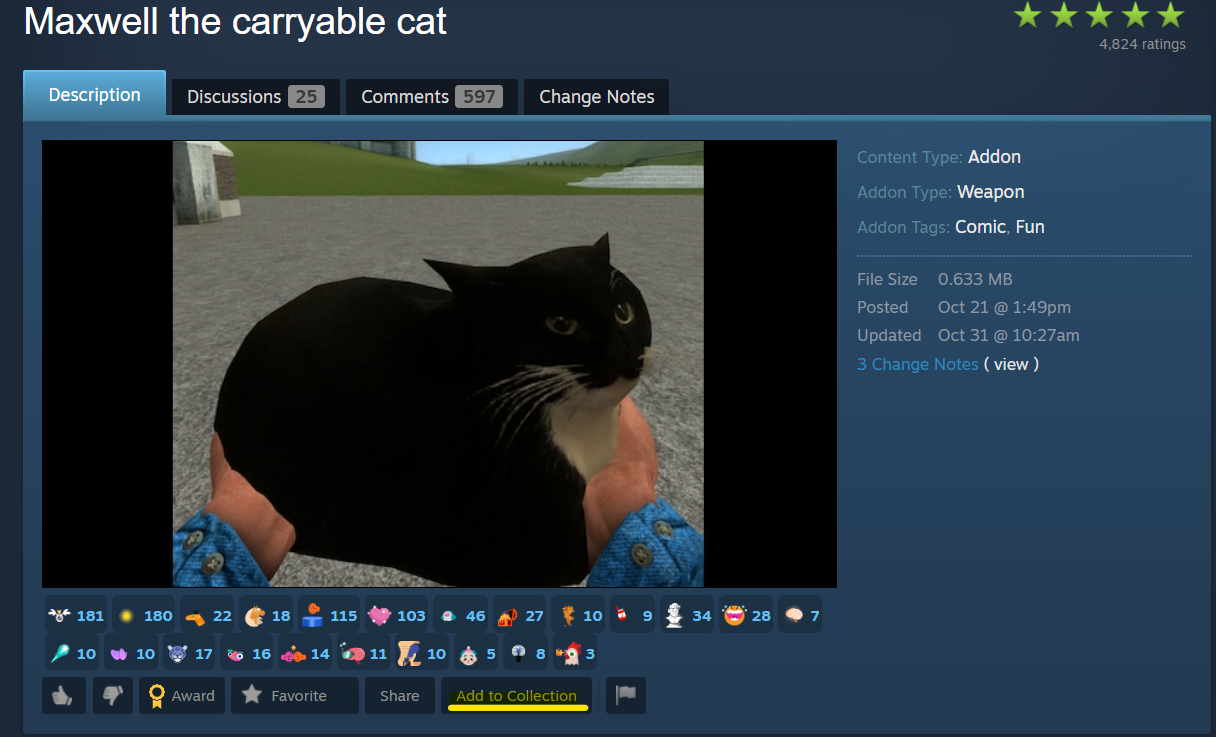
Once you have found an addon you want to add to your server, click the Add to Collection button.
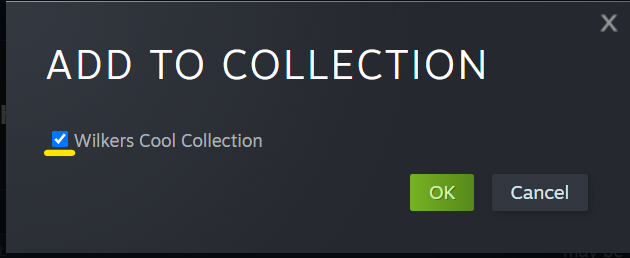
Select the workshop collection that you would like to add the addon to. In this case, we are adding the Maxwell addon to "Wilkers Cool Collection".
Step 5: Set Workshop Visibility
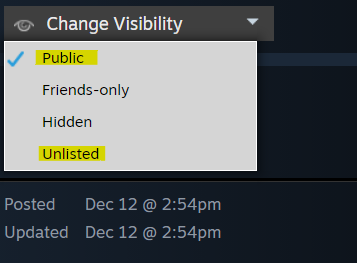
Go back to your workshop collection page, make sure your collections' visibility is either Public or Unlisted. We highly recommend keeping your workshop collection public. Players might want to manually go and download your Workshop addons from your server's collection page.
Step 6: Generate a Workshop ID for Your GMod Workshop Collection
Now we will be adding your workshop page's addon collection to your GMod server. On the Workshop Collections page, right click anywhere and select "Copy Page URL"
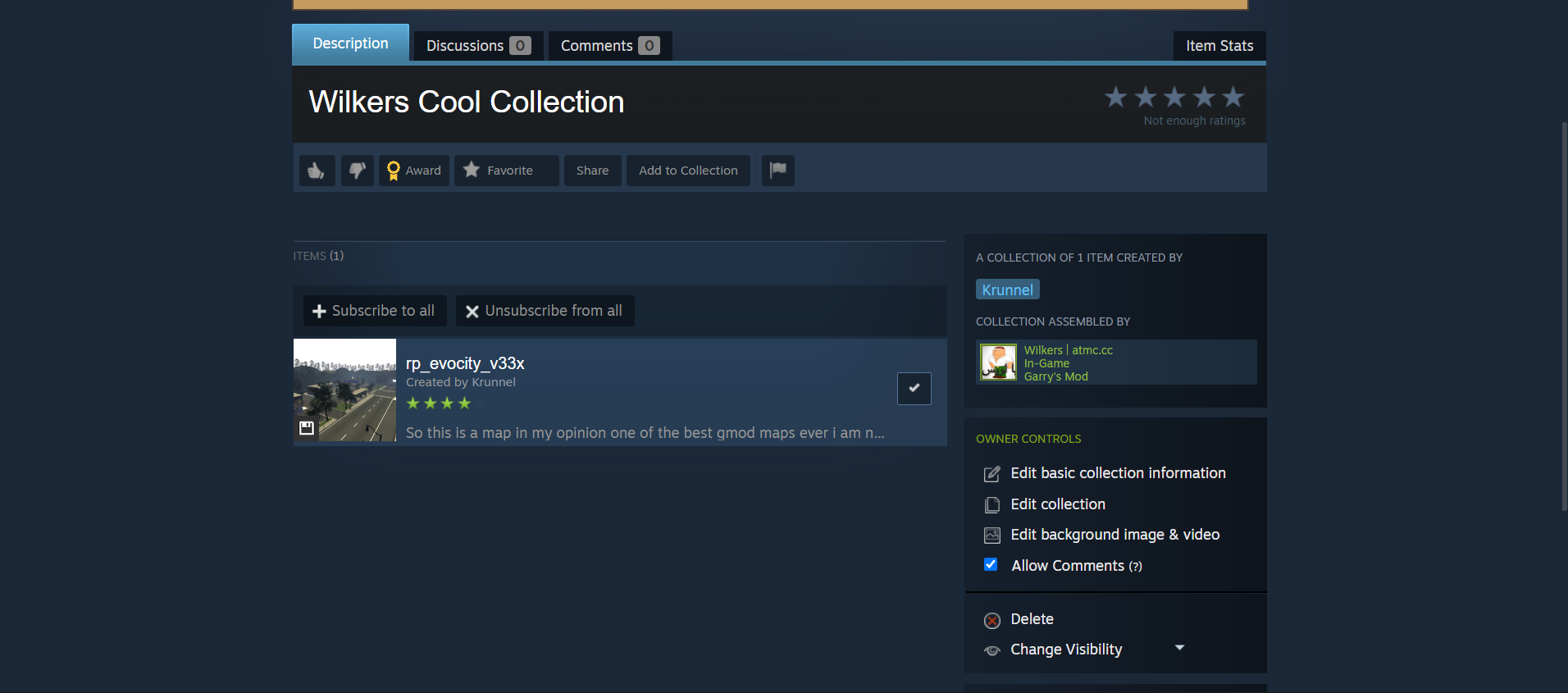
Paste your link anywhere on your computer and take out the Workshop ID.
Example: When doing this step, https://steamcommunity.com/sharedfiles/filedetails/?id=2901076879 becomes 2901076879. 2901076879 is the workshop ID in this example.
Step 7: Navigate to Atomic Panel
Click here to navigate to Atomic Panel. You can log in using your account credentials that you received following checkout. The credentials email is sent to the email address on file in the Billing Panel.
If you're not a current Atomic Networks client, claim your Free GMod Server Hosting to get started on a GMod server for your favorite gamemode in less than half an hour. If you're already hosting with another GMod service, see how we offer way more performance for less.
Step 8: Navigate to the Startup Parameters Tab Under Configuration
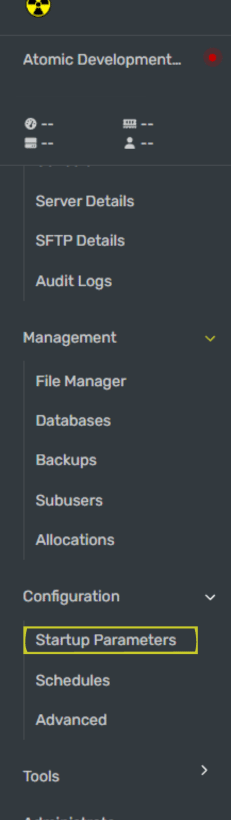
Step 9: Paste the Workshop ID in Atomic Panel
Once you have your Workshop ID, paste it into the "Workshop ID" textbox. If done correctly, your server will have your workshop addons.
Step 10: Restart Your GMod Server
Once you have added your workshop collection, restart your GMod server for the workshop addons to work.
If you're following along with our how to make a GMod server guides, you can go to the next guide.