
Changing your GMod server's host name is the beginning of a new journey to create your GMod server. To change the name of a GMod server, follow the steps below.
Step 1: Navigate to Atomic Panel
Click here to navigate to Atomic Panel. You can log in using your account credentials that you received following checkout. The credentials email is sent to the email address on file in the Billing Panel.
If you're not a current Atomic Networks client, claim your Free GMod Server Hosting to get started on a GMod server for your favorite gamemode in less than half an hour. If you're already hosting with another GMod service, see how we offer way more performance for less.
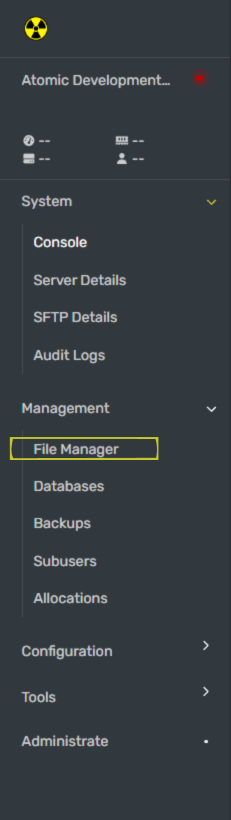
Step 2: Navigate to the File Manager
Step 3: Open the server.cfg File
Once you have opened the File Manager, navigate to the file pathway called /home/container/garrysmod/cfg/server.cfg
Step 4: Set hostname in the server.cfg File
The hostname is the name that you set for your server. If you have not edited your server.cfg file yet, you will find this variable on Line 4 of the server.cfg file. Input your new name by placing it between the two quotation marks ("").
Step 5: Restart Your GMod Server
Once you have set the host name, restart your GMod server for the name to be updated in the server browser.
Congratulations, you just took the first step to making your GMod server! If you're following along with our how to make a GMod server guides, you can go to the next guide.